Before you start
- Owners, Admins and Staff can add members.
- The member's email address is optional. If you enter it, the invitation goes there and the address becomes the identity of their Dakik account. You can add a member with no email too; no invitation goes to them and they cannot open their own panel.
- An email address belongs to one account across all of Dakik. If a Dakik account already uses it, the form says "This email is already used by a Dakik account". The same holds when the person uses Dakik at another studio; add the member with another email address, or without one.
Add a new member
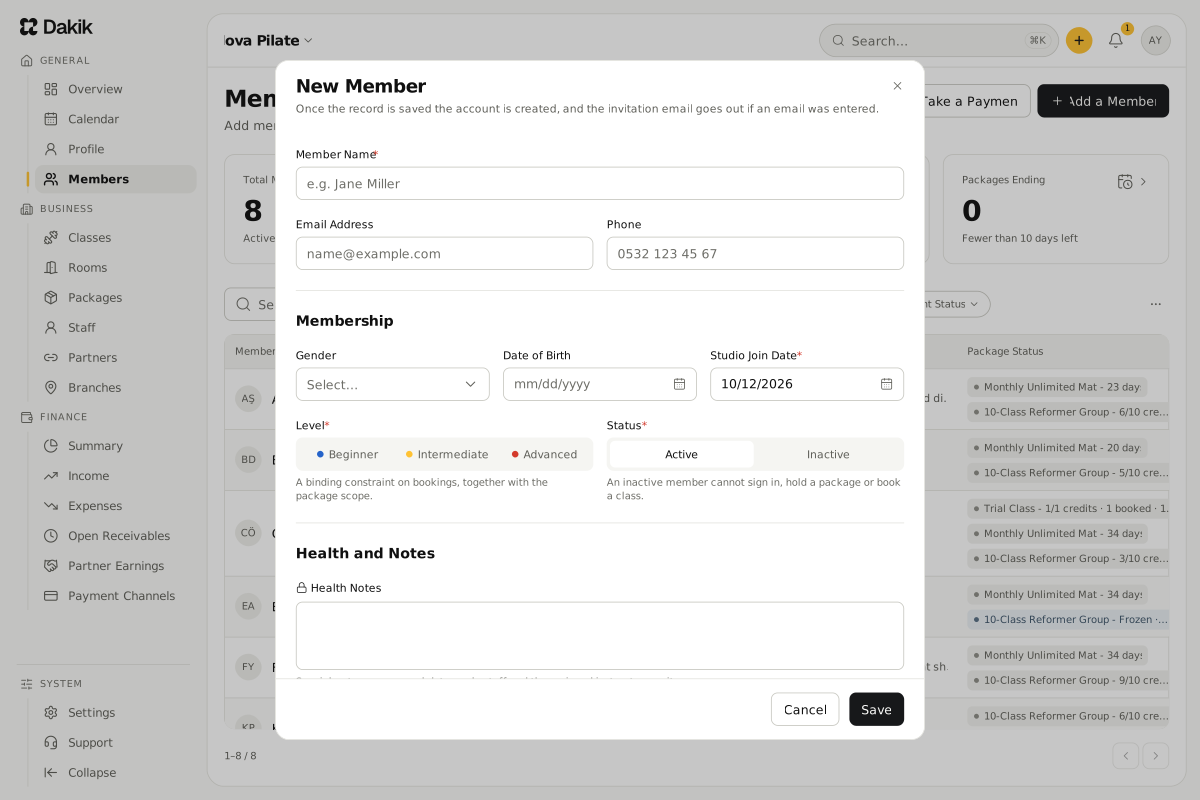
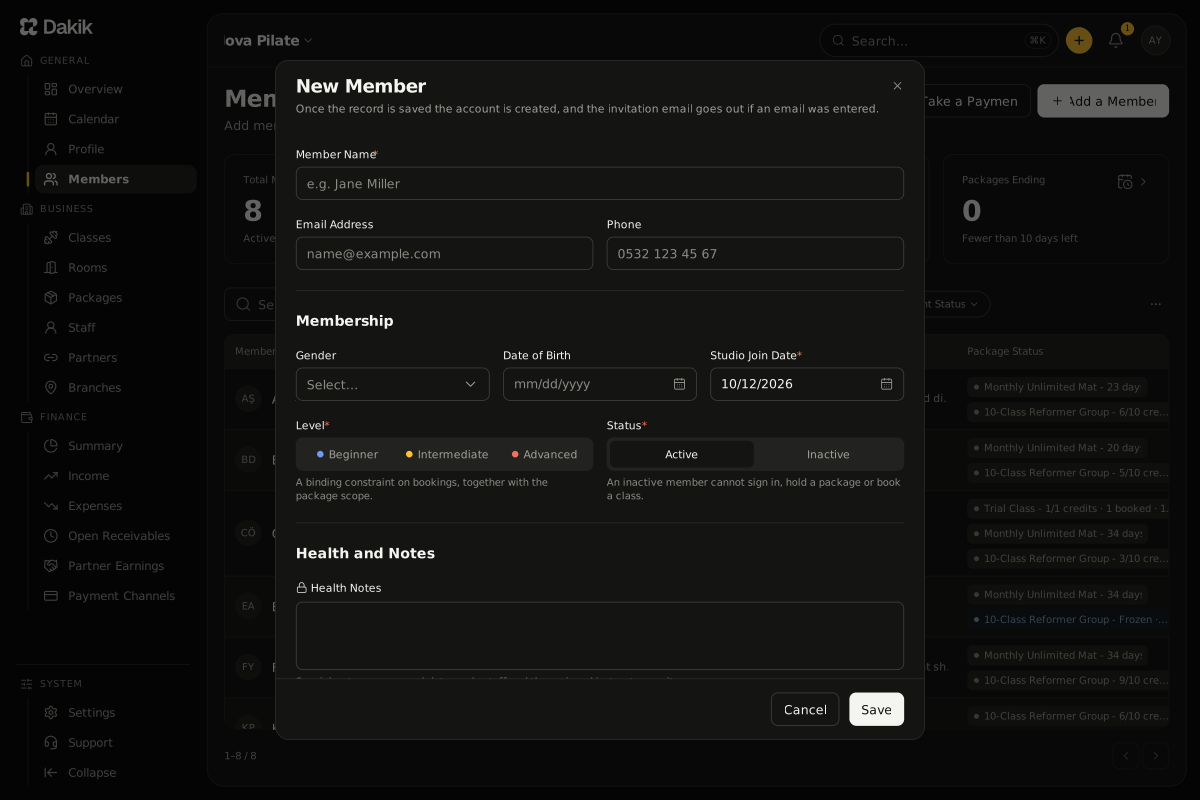
On the Members page, press Add a Member at the top right.
The New Member window opens.
Fill in the Member Name. The Email Address and the Phone are optional; the invitation needs an email.
Under Membership, check the Studio Join Date, choose the Level and leave the Status beside it on Active.
If you like, fill in the fields under Health and Notes.
Tick Privacy Consent. The link in it opens your studio's text.
Press Save.
A "The member was saved" message appears. If you entered an email, the invitation email goes to the member; if not, the message says no invitation went out.
A new member shows as No Package on the list until you give them a package, and as Active once you do: Sell a package to a member.
The fields on the form
The Member Name, Status, Studio Join Date, Level and Privacy Consent are required. Everything else can stay empty.
- Phone: the number your studio's WhatsApp messages go to. Write a number from abroad with its country code (+44, for example).
- If the Phone number is already on another member of your studio, a note such as "This number belongs to Ayşe Yılmaz" appears under the field. The name opens their page in a new tab. The note does not stop you saving: family members who share one number can all be added. The trial page, however, counts a shared number as one person: once the number is on a member, or a trial class was booked with it, no new trial class can be booked with that number (Open the trial class page).
- Level: Beginner, Intermediate or Advanced. Together with the package scope, it is a binding constraint on bookings.
- Health Notes: special-category personal data that only studio staff see. More in Privacy consent and health notes.
- Channel: where the member found the studio: Walk-in, Social Media, Referral or Online Ad.
- Referred By: the existing member who sent this one to the studio. You can pick it whatever the channel.
- Additional Note: the studio's own note about the member. It shows as the Studio Note on the member page, and the member never sees it.
A member without an email
A member saved with the Email Address left empty gets an account in the No Email state. No invitation goes to them and they cannot open their own panel. You manage their packages, sessions and payments as a studio as usual, and if a Phone number is on file, your studio's WhatsApp messages go to it.
- On the Members list the email address shows empty and the Account Status column reads No Email. The Account Status filter lists only these members.
- The header of the Member Details page carries a No Email tag.
To add an email later, choose Edit Member from the More actions (⋯) menu on the Member Details page.
Type the member's address into the Email Address field.
Press Save.
The account moves to Invitation Pending and the invitation email goes to the member.
The invitation email and what the member does
Once a member is saved with an email, their account opens as Invitation Pending and they get an email titled "Studio name - Your membership invitation". The email is written in the language you use Dakik in.
- The invitation link is valid for 7 days and works once.
- When you resend the invitation, the earlier links stop working.
- Opening the link, the member sees your studio name and the email address they were invited at.
- Under Set a Password, the member chooses a password, ticks that they consent to the privacy notice and presses Activate My Account. They can connect their Google account instead of a password.
From then on the member's Account Status is Signed In and they can open their own panel. If the link has expired, the member sees "The invitation link has expired"; resend the invitation then: Resend an invitation.
Was this article helpful?
In this section
Didn't find what you were looking for?
Write to our support team; we answer on working days.