Week, Month and List
On the Calendar page, switch the view with Month, Week and List to the right of the date navigator. The calendar opens again on the view you picked last.
- Week
- Days are columns and hours are rows. Press an empty hour to open Add Session with that day and time filled in; drag sessions to move them (Move or copy a session).
- Month
- Every day of the month and its sessions in one view. Sessions that do not fit a day are gathered in a "more sessions" line. Press the day number to open that week in the Week view.
- List
- The selected week's sessions as a list split by day. Open a session's row to see its members and the Manage Members or Take Attendance button. Today is marked in yellow; the pin beside its date (Pin Today to the Top) moves today to the top of the list and keeps it there until you unpin it.
Move between weeks and months
- Use the arrow buttons of the navigator to go to the previous or next week (the month, in the Month view).
- This Week or This Month brings you back to today.
- On a keyboard, the left and right arrow keys change the week in the Week view and the month in the Month view. They do nothing while you type in a field or a window is open.
- On a phone you can also swipe the calendar left and right.
Find sessions with filters
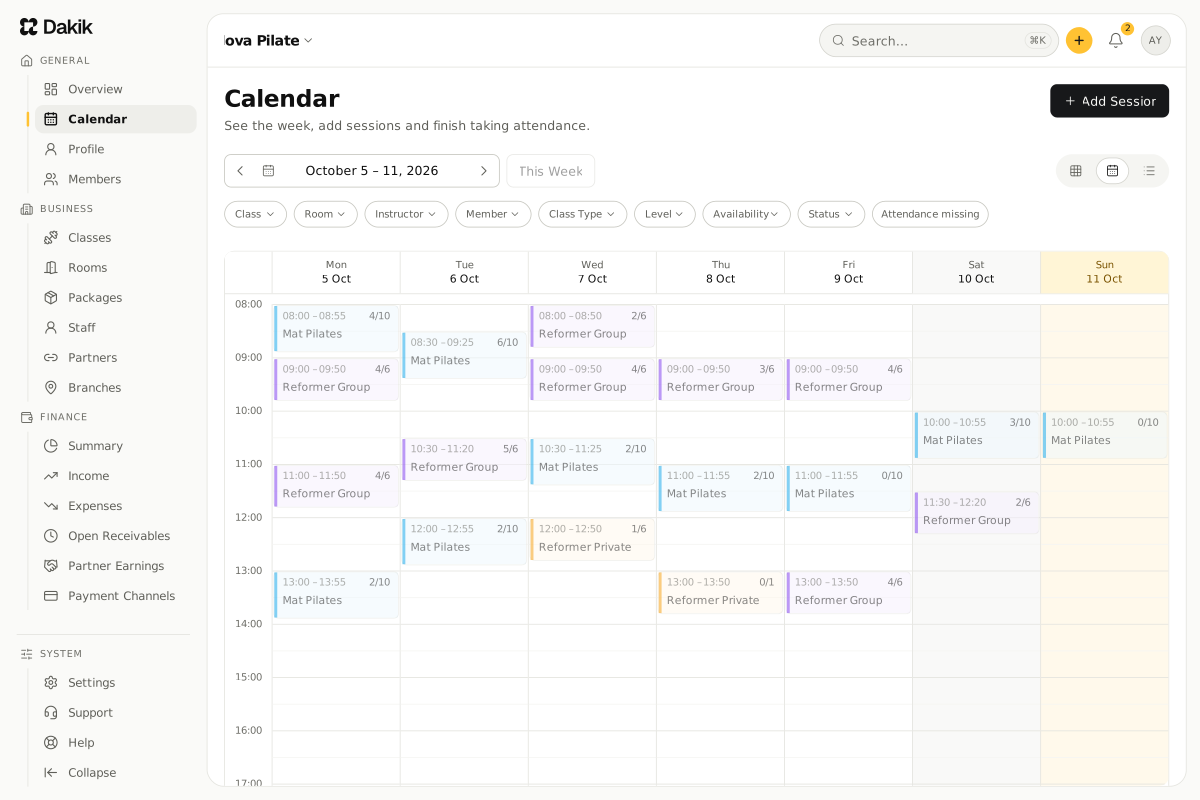
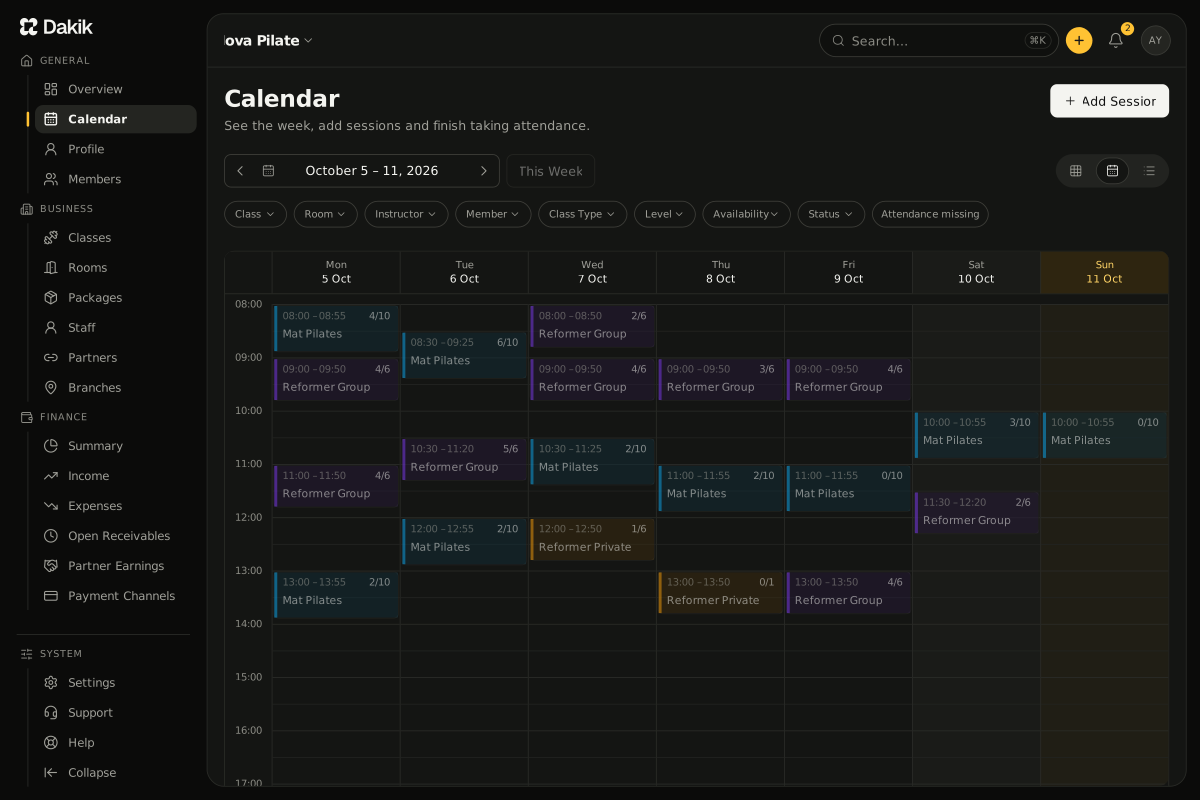
In the filter row, press Class, Room, Instructor, Member, Class Type, Level, Availability or Status. On a narrow screen, press Filters first.
The options open.
Pick the values you want.
The calendar shows only the sessions that match; each value you picked appears in the filter row as a tag you can remove.
To remove every filter, press Clear Filters.
- With Availability you can see only sessions With open spots, those with a given number of open spots, or Full sessions.
- The Member filter shows the sessions the members you picked are registered for.
- On an instructor’s Staff Details page, View Schedule opens the calendar with that instructor picked in the Instructor filter.
- Attendance missing brings up past sessions whose attendance is not finished (Take attendance).
My Classes and Whole Studio
If you have an instructor record, the top of the Calendar page shows a My Classes / Whole Studio switch. My Classes shows only the sessions you teach, Whole Studio every session of the studio.
- For an instructor with the Staff role the calendar opens on My Classes; for an Owner or Admin who also teaches, on Whole Studio. Your last choice is remembered.
- With My Classes on, the Instructor filter is hidden; the other filters and the views work the same.
- With My Classes on, each class in the List view shows your expected earning, its attendance summary and the Take Attendance button.
- While you have no class planned, the Next Class tile on your Profile page opens the calendar on My Classes.
Colors on the session cards
- The card's tint is the class color; the room's color shows as a small dot on the card.
- The level tag carries the level color: Beginner blue, Intermediate yellow, Advanced red. All Levels stays gray.
- An occupancy count on a black ground means the session is full.
- A session nobody is registered for looks faded; once its time has passed it fades further.
- A canceled session has a red edge and its title struck through.
- Hatched Blocked areas show windows when a room or an instructor is unavailable. No session can be added in them.
- Pressing a card opens what the session needs right then: Session Members before it starts, Take Attendance once it has started or passed. To edit the session, choose Edit in the card's "⋯" menu.
A card's member summary
Rest the mouse on a card for a moment and the session's member summary opens: Registered Members, Awaiting Package, Canceled / Rescheduled and, if there is one, the Waitlist. On a touch screen, Member Summary in the card's "⋯" menu opens the same summary. A member with a health note has an icon beside their name; hover over the icon or press it to read the note.
If you have more than one branch
The calendar always shows the sessions of the branch you are in. To see another branch's calendar, switch to that branch; there is no view that shows every branch's sessions together.
Was this article helpful?
In this section
Didn't find what you were looking for?
Write to our support team; we answer on working days.