Before you start
A session is one class, in one room, with one instructor, at one time. So before adding one you need:
- At least one class under Business › Classes.
- At least one room under Business › Rooms that hosts that class.
- An active instructor with that class ticked under Specialties on their staff card.
Add a single session
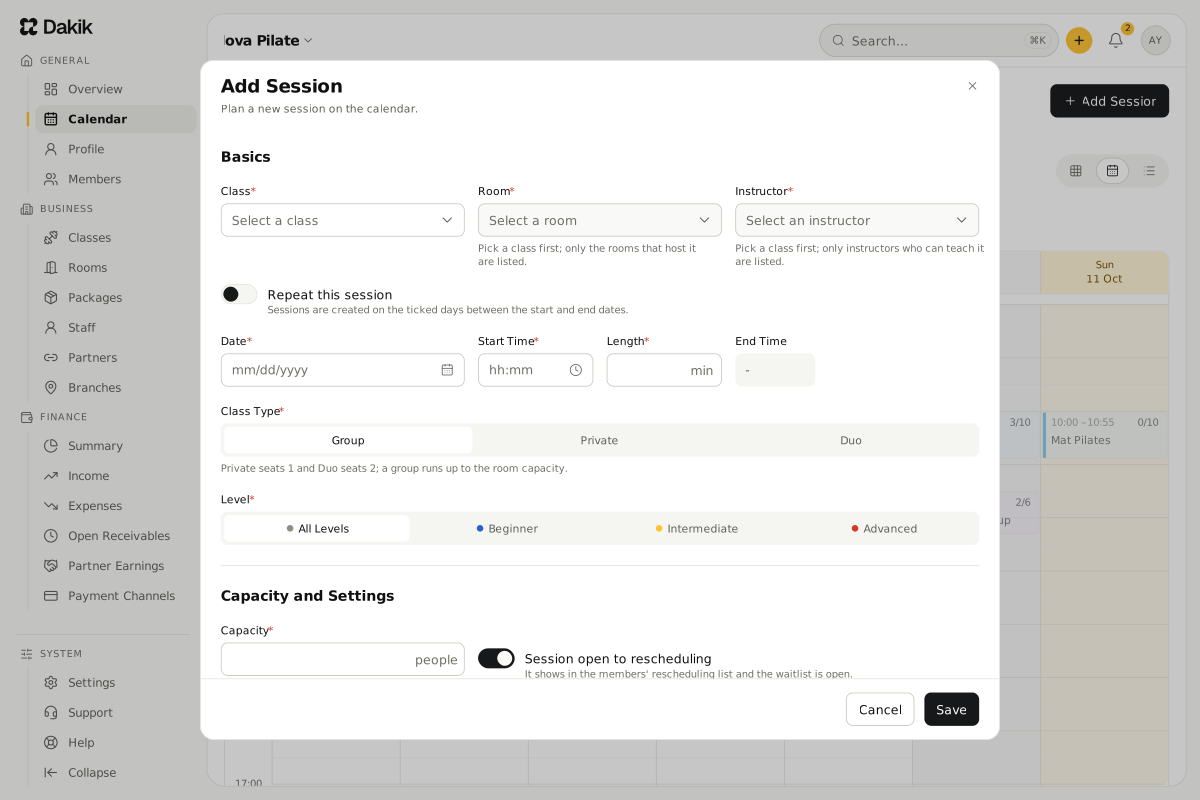
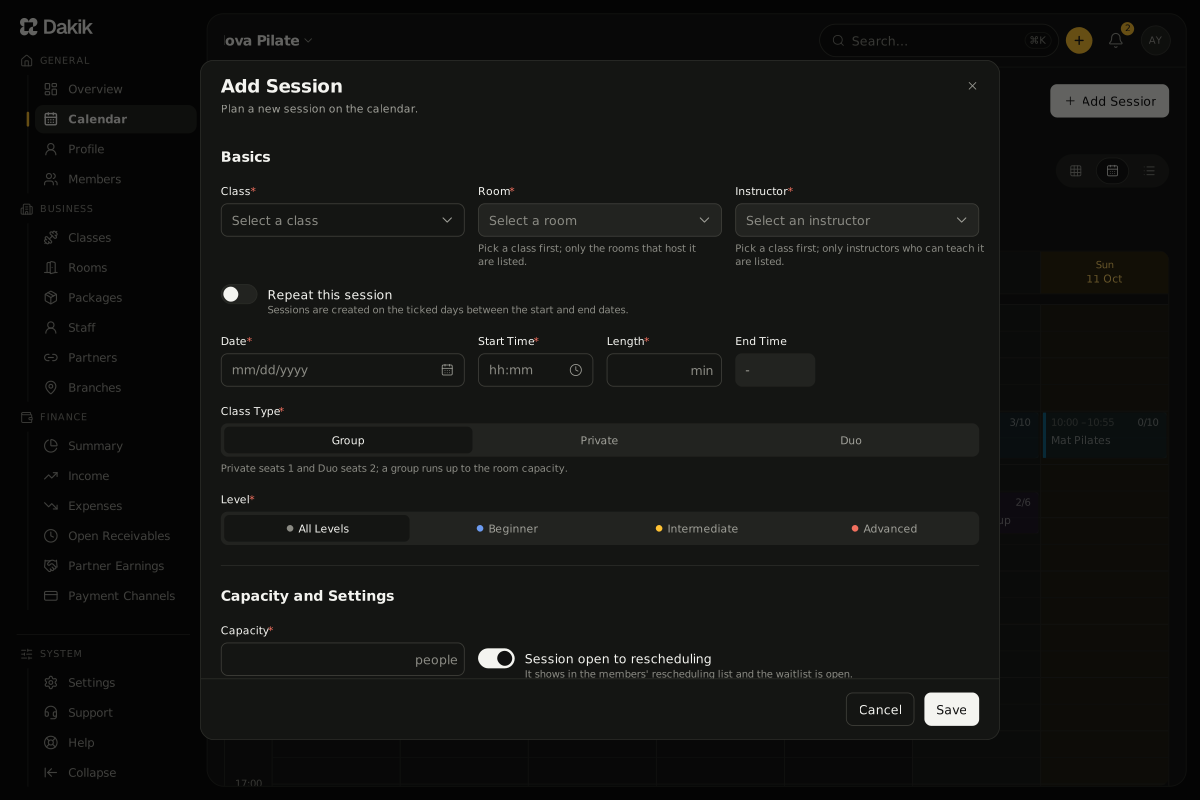
On the Calendar page, press Add Session at the top right.
The Add Session window opens.
Under Basics, choose the Class, the Room and the Instructor.
The Length comes from the class; change it if you need to.
Choose the Date and the Start Time.
Choose the Class Type and the Level.
Under Capacity and Settings, check the Capacity.
A group session cannot hold more people than its room.
If you like, note equipment or anything else under Extra Needs and Notes.
Press Save.
The message "The session is created" appears, the session is on the calendar and the Session Members window opens so you can add members.
Add a session that repeats every week
If the same class runs at the same time every week, create a series instead of adding each session by hand.
Choose the class, room, instructor and time as above.
Turn on Repeat this session.
The date becomes a Start Date and an End Date.
Pick the first and last dates of the series.
Under Days of the week, tick the days the session runs.
The form previews how many sessions will be created.
Press Save.
The message "The series is created" appears with the number of sessions, and the Session Members window opens on the first session, with Standing member of the series first in the Add menu.
If a conflict warning appears
Dakik checks for conflicts while you fill in the form and shows a red warning for each one:
- Room conflict: the room is taken by another session at that time.
- Instructor conflict: the instructor is teaching another session at that time.
- Room blocked or Instructor blocked: the room or instructor is marked unavailable for that time.
While a warning is on screen, Save does not work. Changing the time, the room or the instructor clears it.
Should members be able to move into this session?
The Session open to rescheduling switch under Capacity and Settings is on by default. While it is on, the session is offered to members who want to move a class, and its waitlist is open.
Was this article helpful?
In this section
Didn't find what you were looking for?
Write to our support team; we answer on working days.