The three pages of your menu
As a member, your menu holds three pages:
- Calendar: your own classes only, on a calendar. It heads the menu and is the page that opens when you sign in.
- Profile: the summary figures, the Needs Attention card, your packages, your payments and your personal details.
- Classes: your upcoming classes, your waitlist entries, your make-up credits, your standing seats and your past classes.
On a wide screen the pages sit in the menu on the left; on a phone, in the bar along the bottom of the screen. When you press a notification or a link sent to you, the matching page opens on its own.
Profile: the header and the summary figures
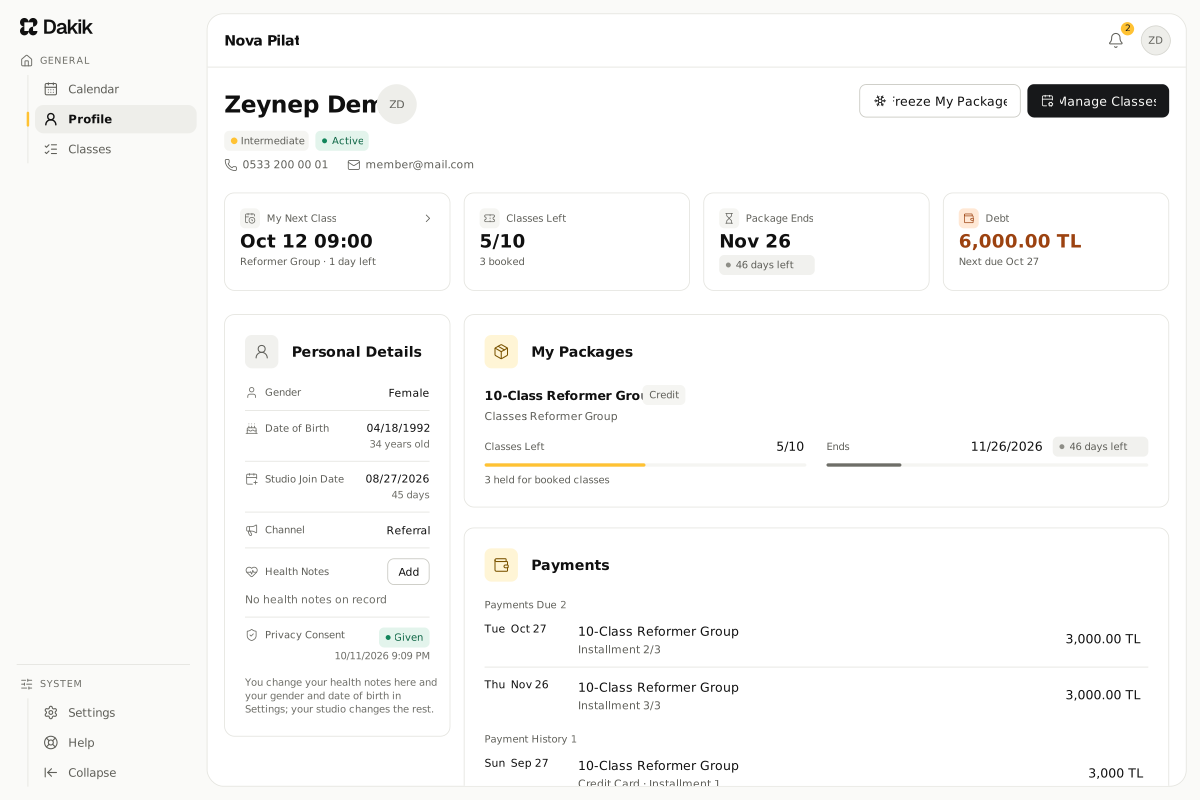
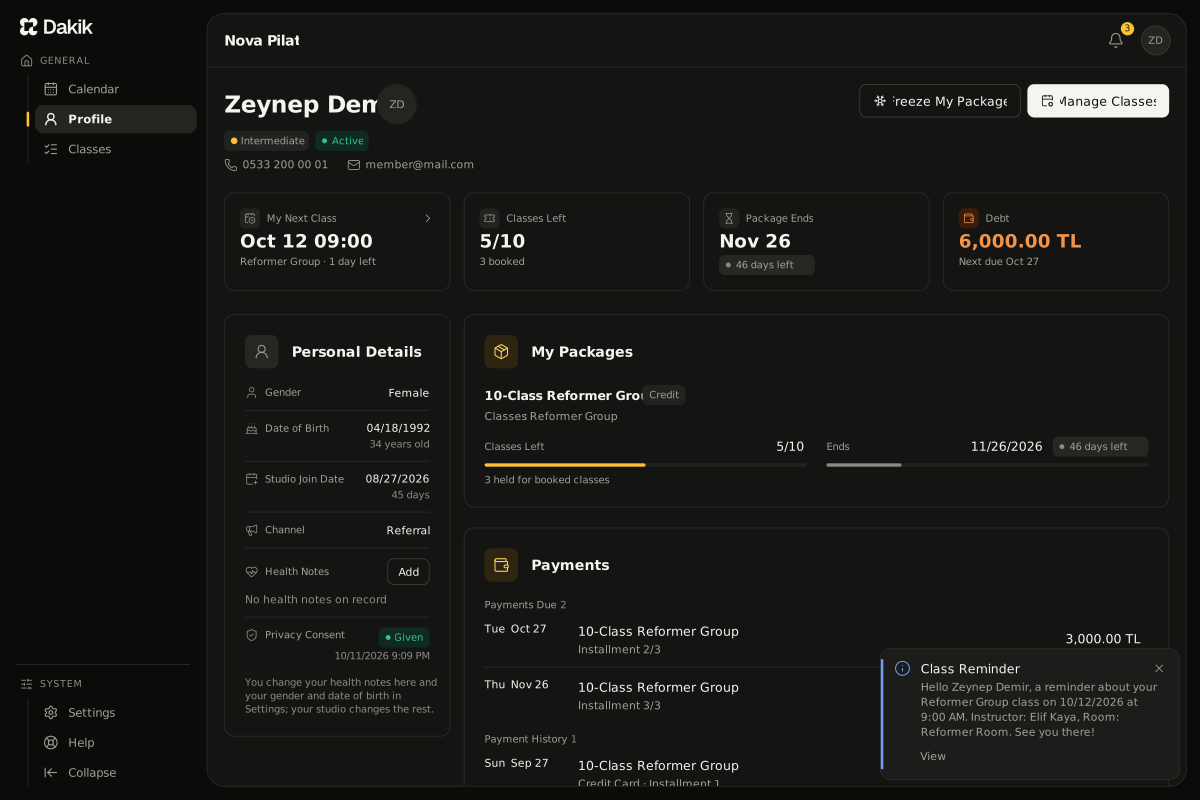
The header of the Profile page shows your photo (your initials if you have not uploaded one), your name, your level and your membership status: Active while a package is running, No Package when none is. On the right, Manage Classes opens the window where you cancel or move your classes, and Freeze My Package opens the package freeze window. You upload or change your photo on the Profile card of the Settings window: My Account: profile, security, language and theme.
The four figures under the header show where you stand at a glance:
- My Next Class: your soonest booked class. Pressing it opens the Classes page.
- Classes Left: the classes left in your active packages.
- Package Ends: the nearest package end date and the days left.
- Debt: what you still owe the studio and the next due date. Its breakdown is the Payments card on the same page.
The Needs Attention card
When something needs you now, the Needs Attention card appears on the Profile page, under the summary figures; otherwise it is not shown at all. It can carry these lines:
- You have an overdue payment
- An installment is past its due date. See Payments takes you to the Payments card on the same page; you pay at the studio.
- A spot opened up on the waitlist
- You were offered a spot in a session you were waiting for. Respond opens the Waitlist section of the Classes page, where you can take it: Accept a waitlist offer.
- A class is waiting for a package
- Your studio booked you into a class but has not assigned your package yet. The booking becomes a regular one once it does.
- No classes left, or only a few
- Your package has run out of classes or is running low; talk to your studio to renew it.
- Your package is ending
- Your package ends in a few days, or today.
- Your make-up credit is expiring
- One of your make-up credits is about to expire. Press Use on the line to pick a session right away: Use a make-up credit.
Profile: your personal details and your packages
On the Profile page the Personal Details card stands on the left, and beside it the Needs Attention, My Packages and Payments cards one under another; on a phone they all sit in one column.
- Personal Details: your date of birth, the date you joined the studio, how you heard of it and your health note.
- My Packages: your active packages. Each shows its type, the classes it covers, the classes left (this week's classes for a time-based package) and the end date with the days left. The classes held for your booked classes show under the classes left; a frozen package shows its freeze dates under it, and a freeze still to come shows as a Planned freeze line under the package, which Cancel the Freeze cancels. With no active package the card says so; ask your studio for a new one.
- Past Packages: under My Packages, the packages that are no longer active, with their start and end dates, your use, the payment status and the price. The newest three show; when there are more, See All opens them all in a window. With no past package, this part is not shown.
You change your health notes yourself on the Personal Details card, with the Edit button on the Health Notes row (Add when there is no note); when you change them, the instructors of your upcoming classes are notified. Your name, phone number, gender and birth date you change on the Profile card of the Account page in Settings; only your studio can change the rest.
Calendar
The Calendar page shows only your own classes, not the studio's whole timetable. You can follow them by month, by week or as a list, and narrow them down to a class or an instructor. Press a class to see its details; for an upcoming one, Manage Class there lets you change it. The days your package is frozen are marked.
Classes
The Classes page puts what is ahead of you at the top and your history at the bottom. Manage Classes in its header opens the same cancel and reschedule window as on the Profile page. The three sections in between show only when they hold something:
- Upcoming Classes: your bookings, with the date, time, room and instructor. When your package allows it, the row also shows the latest time you can cancel the class ("Cancel by"); on a package that only allows rescheduling it reads "Change by", and it goes once that time has passed. Press a class name to see its details. The first five classes show; the button under the list opens the rest.
- Waitlist: the full sessions you are queuing for. While you wait, your place and Leave the List show; once you are offered a spot, the time left with Take It and Pass: Accept a waitlist offer.
- My Make-up Credits: the credits left from your canceled classes that you can still use, with their type, expiry, the time left and a Use button: Use a make-up credit.
- My Standing Seats: the places your studio holds for you every week, with their days and time. If your package has ended, the last day your place is held shows on the row; a paused seat says so too.
- Past Classes: the classes you attended or missed, newest first, each with its time, room and instructor.
Profile: Payments
The last card on the Profile page is Payments, and it is for reading only. It has two parts:
- Payments Due: your unpaid installments, the soonest due first, with the due date, the package, the installment number and the amount left. An installment past its due date reads Overdue, one paid in part Partially Paid. This part shows only while you owe something.
- Payment History: the payments your studio recorded, newest first, with the date, the package, the payment method and the amount. The newest three show; when there are more, See All opens the whole list in a window.
What you can do from the panel
- Cancel a class: Cancel a class
- Move a class to another session: Reschedule a class
- Use a make-up credit: Use a make-up credit
- Answer a waitlist offer: Accept a waitlist offer
- Freeze your package: Freeze your package
Was this article helpful?
In this section
Didn't find what you were looking for?
Write to our support team; we answer on working days.