Before you start
- Only Owners and Admins can add staff.
- If you are adding an instructor, define your classes under Business › Classes first. The classes they can teach are picked from that list.
- Make sure the email address is right. The invitation goes to it, and the address cannot be changed from the app once the record is saved.
Add the staff member
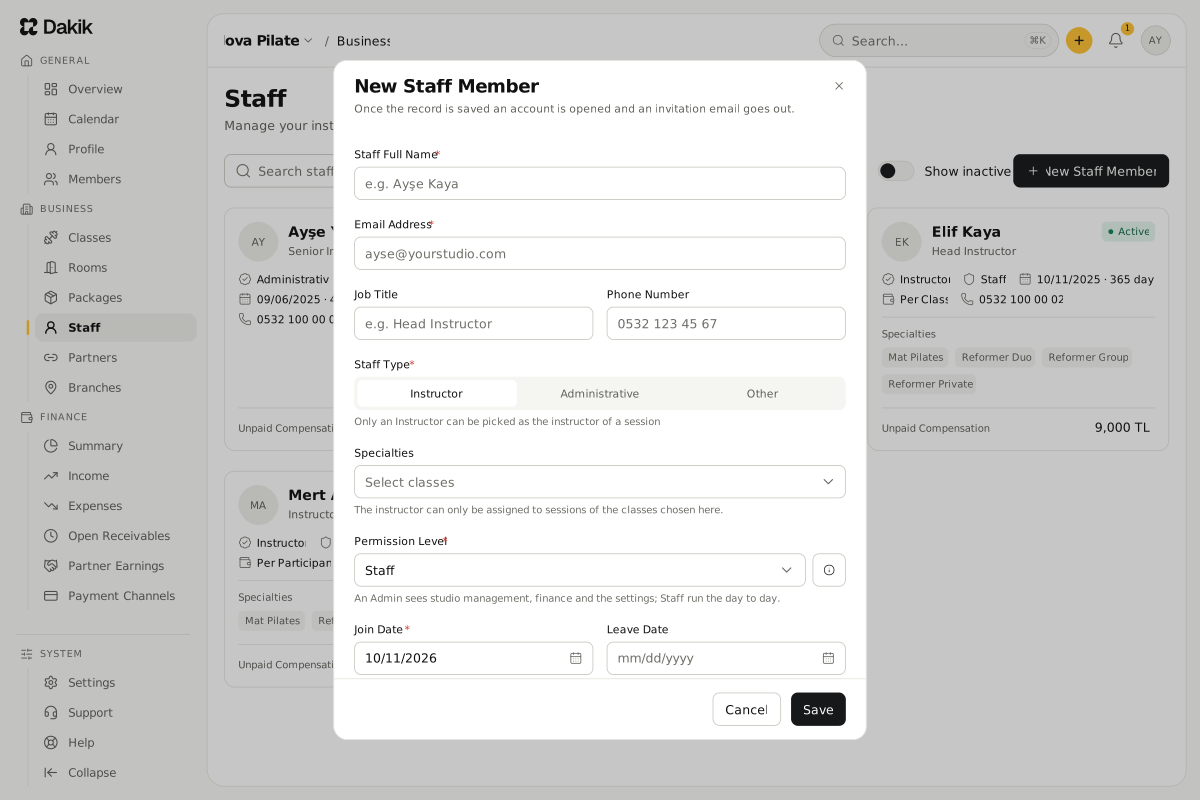
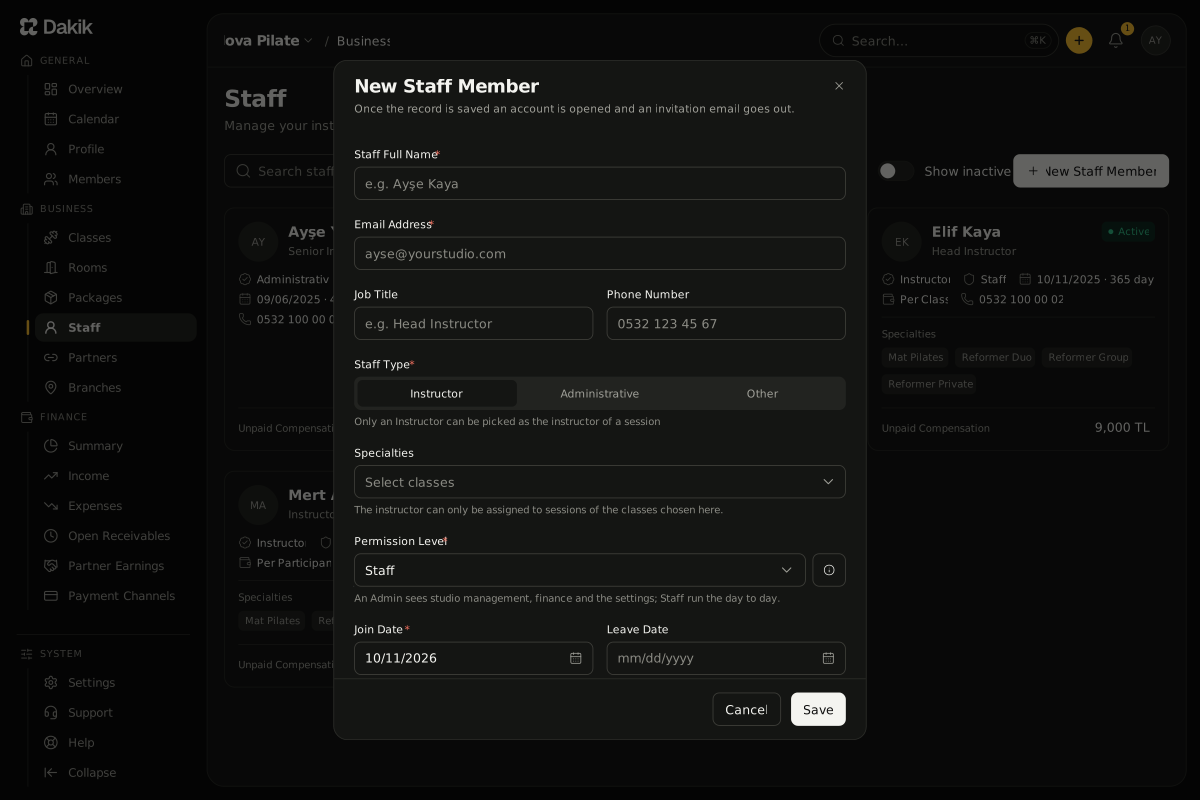
On the Business › Staff page, press New Staff Member.
The New Staff Member window opens.
Fill in Staff Full Name and Email Address. Job Title and Phone Number are optional.
Choose Instructor, Administrative or Other as the Staff Type.
With Instructor chosen, the Specialties field and the Availability section appear.
For an instructor, pick the classes they can teach under Specialties.
Choose the Permission Level. It starts on Staff.
Check the Join Date; it starts on today. If you already know when they leave, enter the Leave Date too.
Under Compensation, choose the Compensation Type and enter the amount it asks for.
For Per Class or Per Participant, enter the fee class by class: pick the classes under the row’s Classes, then the fee and, if you like, the bonus below them.
For classes with a different fee, open a new row with Add Class Rate. Reformer and Yoga at 500 TL and Zumba at 300 TL, for example.
Press Save.
The message "The staff member is saved" appears with "The invitation email has been sent (valid for 7 days).", and the person joins the staff list.
The invitation and the account
Once the record is saved, the person’s account opens as Invitation Pending. They open the link in the email and set up their account; until then they cannot sign in.
- The invitation link is valid for 7 days.
- Until it is accepted, the header of the staff member’s page shows Invitation Pending beside the labels under their name, and the Needs Attention card at the top of the page reminds you with The invitation has not been accepted. The label goes once the account is set up.
- To send it again, open the More actions (⋯) menu on the staff member’s page and choose Send the Invitation Again. The message "The invitation was sent again (valid for 7 days)" appears.
- The invitation email is written in the language the inviting person uses the app in.
Was this article helpful?
In this section
Didn't find what you were looking for?
Write to our support team; we answer on working days.