Before you start
- The Finance › Income page is open to the Owner and Admin roles only. Editing and canceling an income, and recording an income of the Other type, belong to these two roles as well.
- Users with the Staff role can only record a payment from a member: Take a payment.
- Every income needs a Payment Method and an Account; both are defined on the Payment Channels page: Payment channels and account movements.
Record an income that belongs to no member
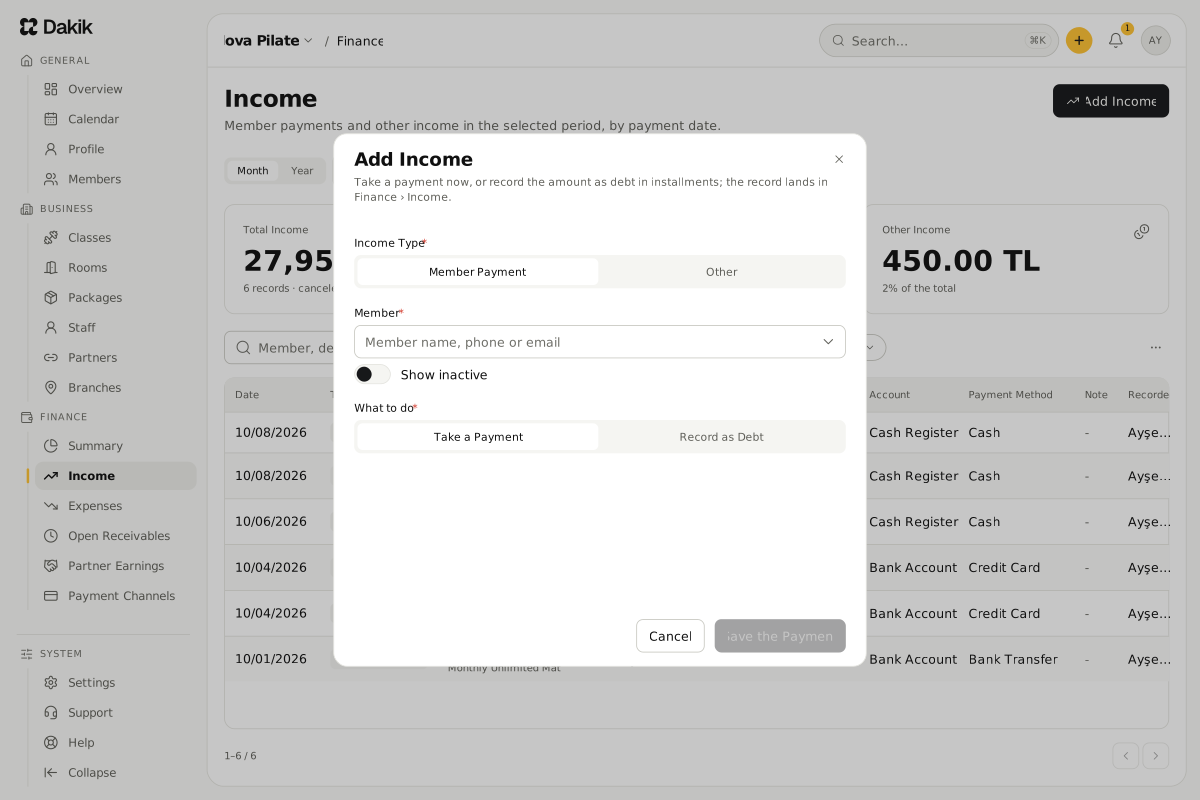
On Finance › Income, press Add Income.
The Add Income window opens.
Under Income Type, choose Other.
Enter the Payment Amount and the Payment Date.
Write what the income is in Description. For this type the description is required.
Choose the Payment Method and the Account; add a Note if you like.
Press Save the Income.
A "The income is recorded" message appears and the record joins the list.
- If you choose Member Payment under Income Type, the window turns into the form for taking a payment from a member or opening a debt: Take a payment.
- A Partner Payout is not recorded in this window; it is recorded with Record Payout on the Partner Earnings page: Partner earnings.
Read the Income list
The list shows the records of one month or one year. Change the period with the Month / Year choice at the top of the page. A record appears in the period its Payment Date falls in. The period you choose stays with you as you move to the other Finance pages.
- The Total Income, Member Payments and Other Income cards at the top add up the selected period and filters; canceled records do not count. Partner payouts are part of the Other Income card.
- Narrow the list with the Income Type, Account, Payment Method and Member filters.
- The search box at the top left of the table looks through the member name, the description, the note and the package, account and payment method names. Turkish letters need not be typed: "sule" also finds "Şule". The search narrows the cards at the top and the CSV file too.
- Press a column header to sort. The list starts with the newest payment date.
- The row of a payment set against an installment also shows the installment's number.
Edit an income
Press the record's row, or choose Edit in its ⋯ menu.
The Edit the Income window opens.
Change the Payment Amount, Payment Date, Description, Payment Method, Account or Note.
Press Save.
A "The income is updated" message appears.
- The type of the income, its member and the installment it was set against cannot be changed. If one of these is wrong, cancel the record and enter the right one again.
- When you change the amount of a payment set against an installment, the difference moves that installment's balance. The new amount cannot be more than the installment owes.
- Changing the payment date can move the record to another month; the period totals change with it.
Cancel an income
Choose Cancel in the record's ⋯ menu.
The Cancel the income record window opens.
Write a Reason for canceling if you like.
Press Cancel the Income.
A "The income record is canceled" message appears. The record stays on the list as Canceled.
Income records are never deleted, only canceled. A canceled record leaves every total and every account balance. If the payment was set against an installment, that installment goes back to its earlier balance and status, and shows as open again on Open Receivables.
Download the list as a CSV
Choose Export (CSV) in the More actions (⋯) menu above the table. The file holds every record of the selected period and filters; canceled records are in it too, with their Status column.
Was this article helpful?
In this section
Didn't find what you were looking for?
Write to our support team; we answer on working days.